Build an hourly payroll you can explain.
This guide covers the detailed hourly workflow inside Payroll: bring in timesheet data, decide what stays as overtime or moves to RDO, pay leave correctly, review every adjustment, and lock the period only when the numbers make sense.
The operating rule
Work from left to right and top to bottom. Recalculate after changing a field, then read the Payment Breakdown and Net Total again. A draft can be edited; a validated payroll is the frozen record used for payslips and downstream reports.
What this page controls
1 · Open the period and call the timesheet
- Open Payroll, select the hourly employee, and choose New Payroll or open the draft period.
- Check the Pay Period. The start date normally follows the employee’s last payroll; the end date must match the profile frequency.
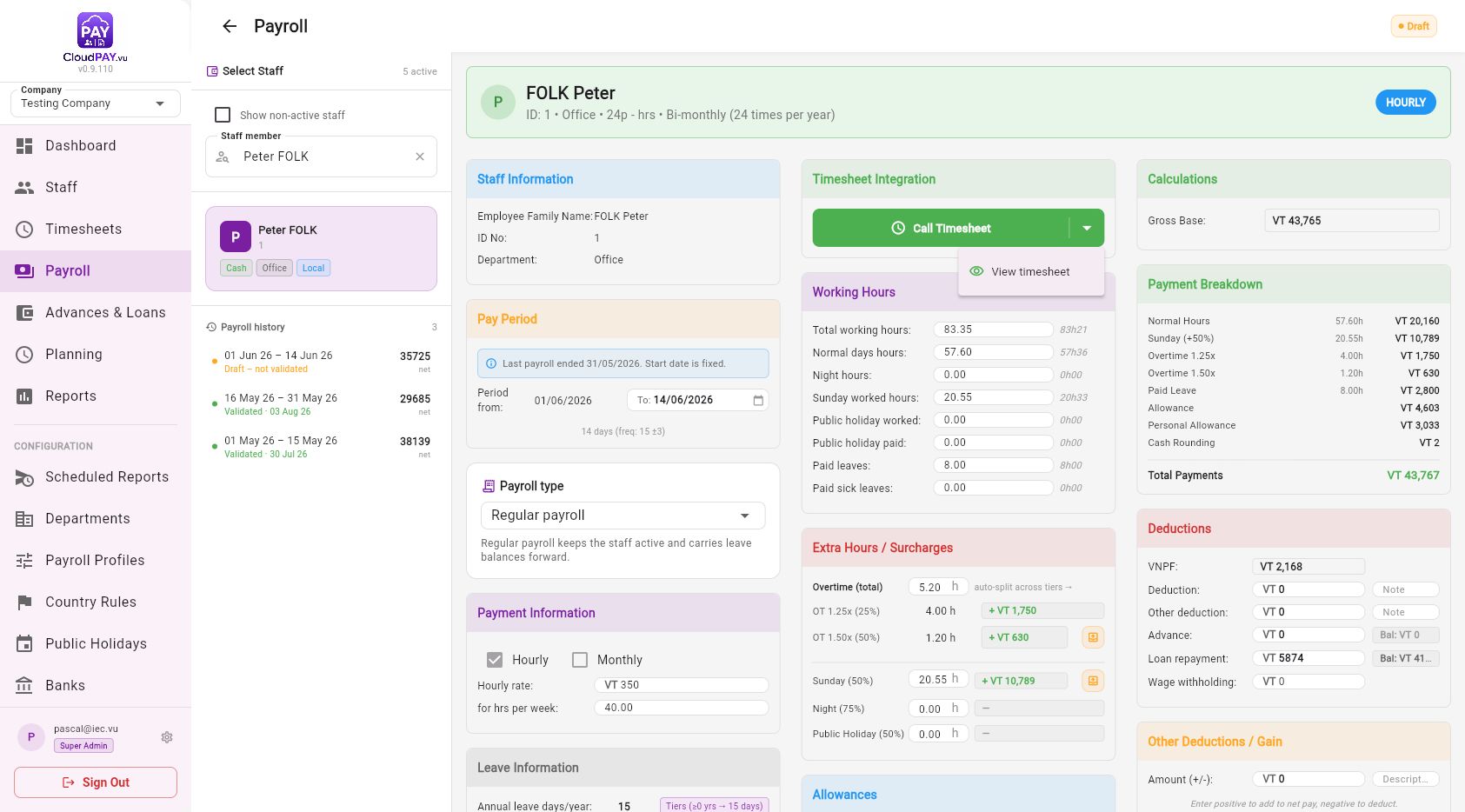
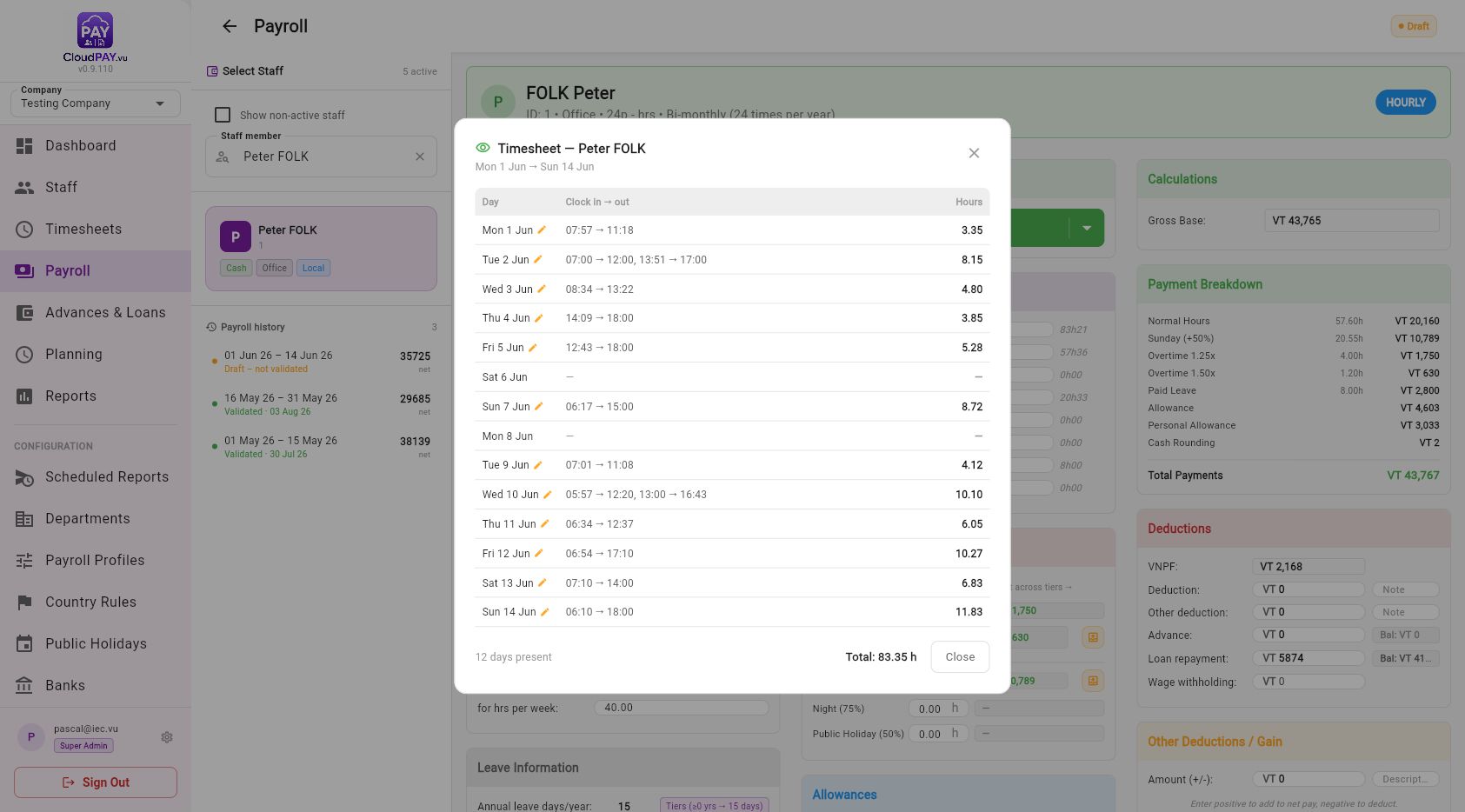
- Select the main Call Timesheet button to pull the period’s clockings and recalculate attendance. Use the arrow beside it, then choose View timesheet when you want a read-only preview first.
- After editing a timesheet elsewhere, return to this page and call the timesheet again so the payroll uses the latest hours.
2 · Read working hours and premium pay
The Working Hours card separates attendance categories. Values shown as hours are normally supplied by the timesheet; the Extra Hours / Surcharges card is where you review or adjust the premium calculation.
| Field | What it means | What to check |
|---|---|---|
| Total working hours | Total paid attendance hours for the period. | Compare with the timesheet preview and the employee’s expected roster. |
| Normal days hours | Hours paid at the base hourly rate. | Confirm ordinary hours were not classified as Sunday, night, holiday or overtime. |
| Night / Sunday / Public holiday worked | Hours that receive the profile’s premium percentage. | Check the day and time classification, not only the amount. |
| Paid leaves / Paid sick leaves | Leave hours paid in the period. | Confirm the leave entry is approved and not also counted as worked hours. |
Overtime: enter the total, inspect the split
- In Extra Hours / Surcharges, edit Overtime (total) only when the timesheet total needs a correction.
- Press Enter or move focus out of the field to recalculate. CloudPay distributes the total across the profile’s overtime tiers.
- Read each tier: for example OT 1.25x and OT 1.50x. Confirm the hours and the VT amount agree with the policy.
- Use the small edit control beside Sunday, Night or Public Holiday only to correct the hours in that category. Recheck the breakdown after every change.
3 · Use RDO (Rostered Day Off)
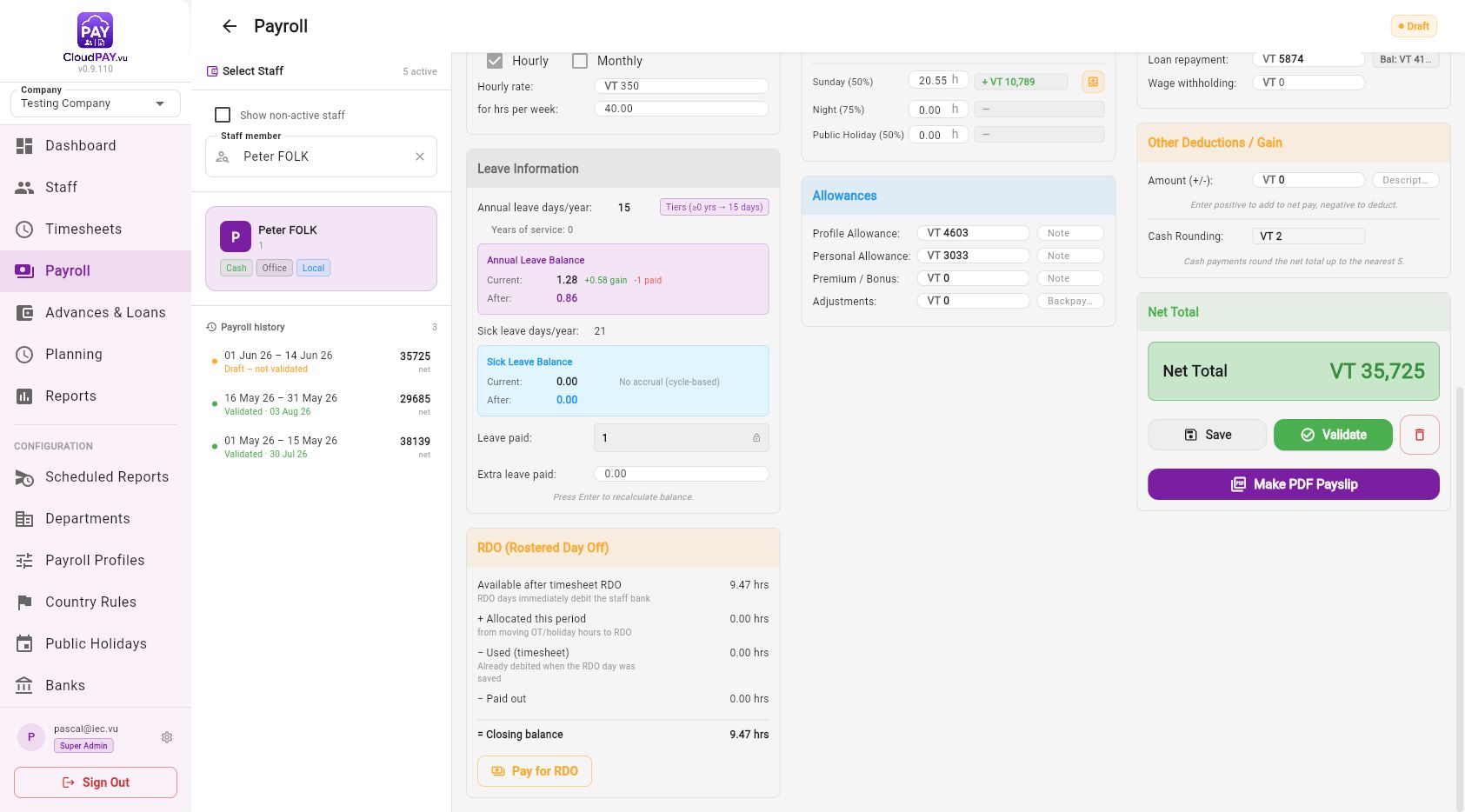
RDO is a bank of hours. The RDO card shows the movement for this period and the balance that will carry forward.
| RDO row | How to interpret it |
|---|---|
| Available after timesheet RDO | Hours already owed after RDO days saved in the timesheet. An RDO day immediately debits the staff bank. |
| + Allocated this period | Hours moved from overtime, Sunday, night or public-holiday work into the RDO bank. |
| − Used (timesheet) | Hours consumed by RDO attendance recorded in the timesheet. |
| − Paid out | Hours converted to cash in this payroll. |
| = Closing balance | The balance that remains after this period. It must not be negative. |
Move premium hours into RDO
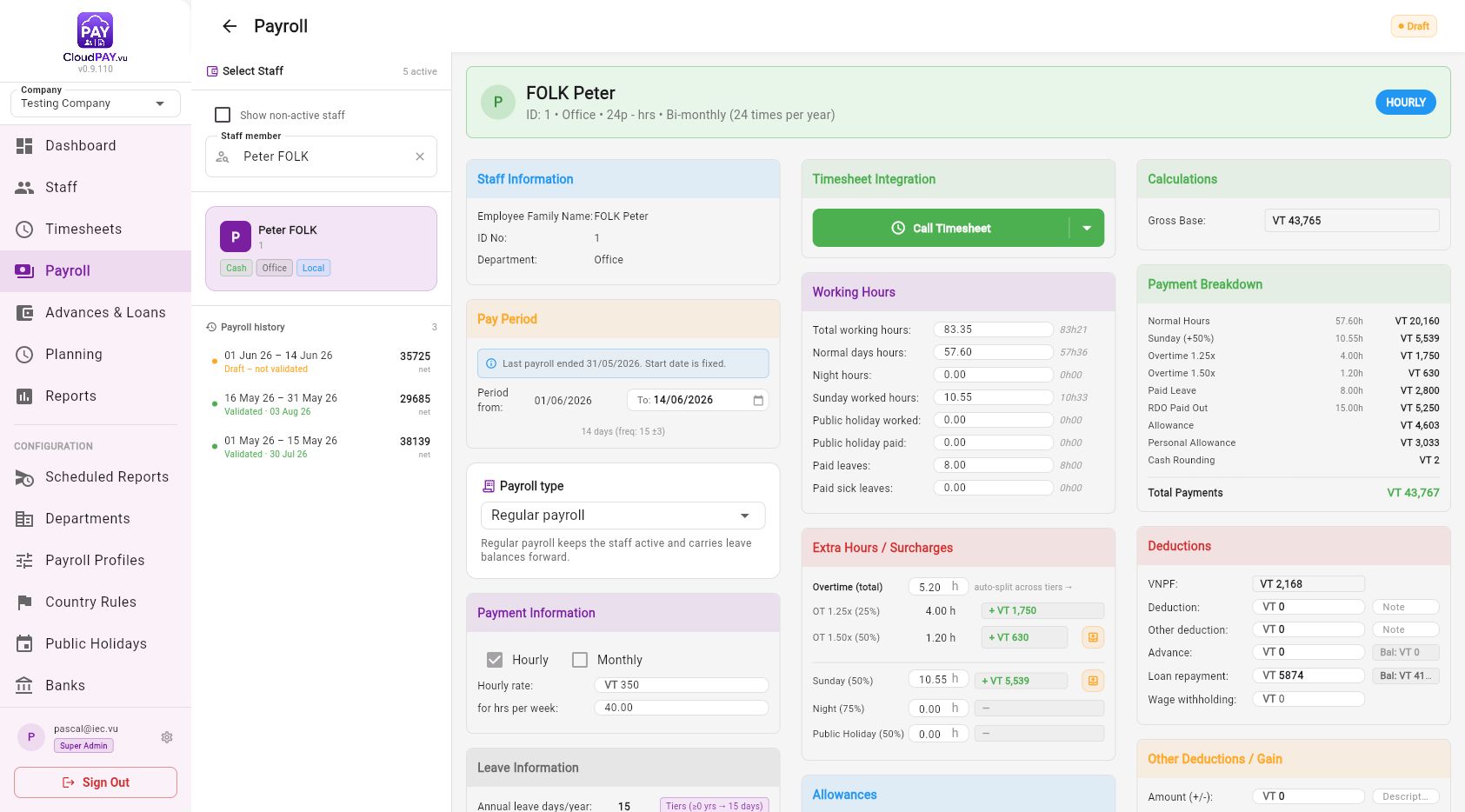
- Find an eligible overtime, Sunday, Night or Public Holiday row with the small Move hours to RDO icon.
- Enter the number of hours to move. Use All only when the whole row should become RDO.
- Select Move. Those hours are removed from current pay and added to Allocated this period.
- Read the new Payment Breakdown and RDO closing balance. If the hours should be paid instead, leave them in their premium row.
Pay banked RDO hours
- When Closing balance is positive, select Pay for RDO.
- Enter the total RDO hours to pay for this period, then select Pay. When adjusting an existing payout, enter the new total, not an additional amount.
- Confirm that Paid out increases, the closing balance remains zero or positive, and RDO Paid Out appears in the payment breakdown.
4 · Pay annual leave, extra leave and sick leave
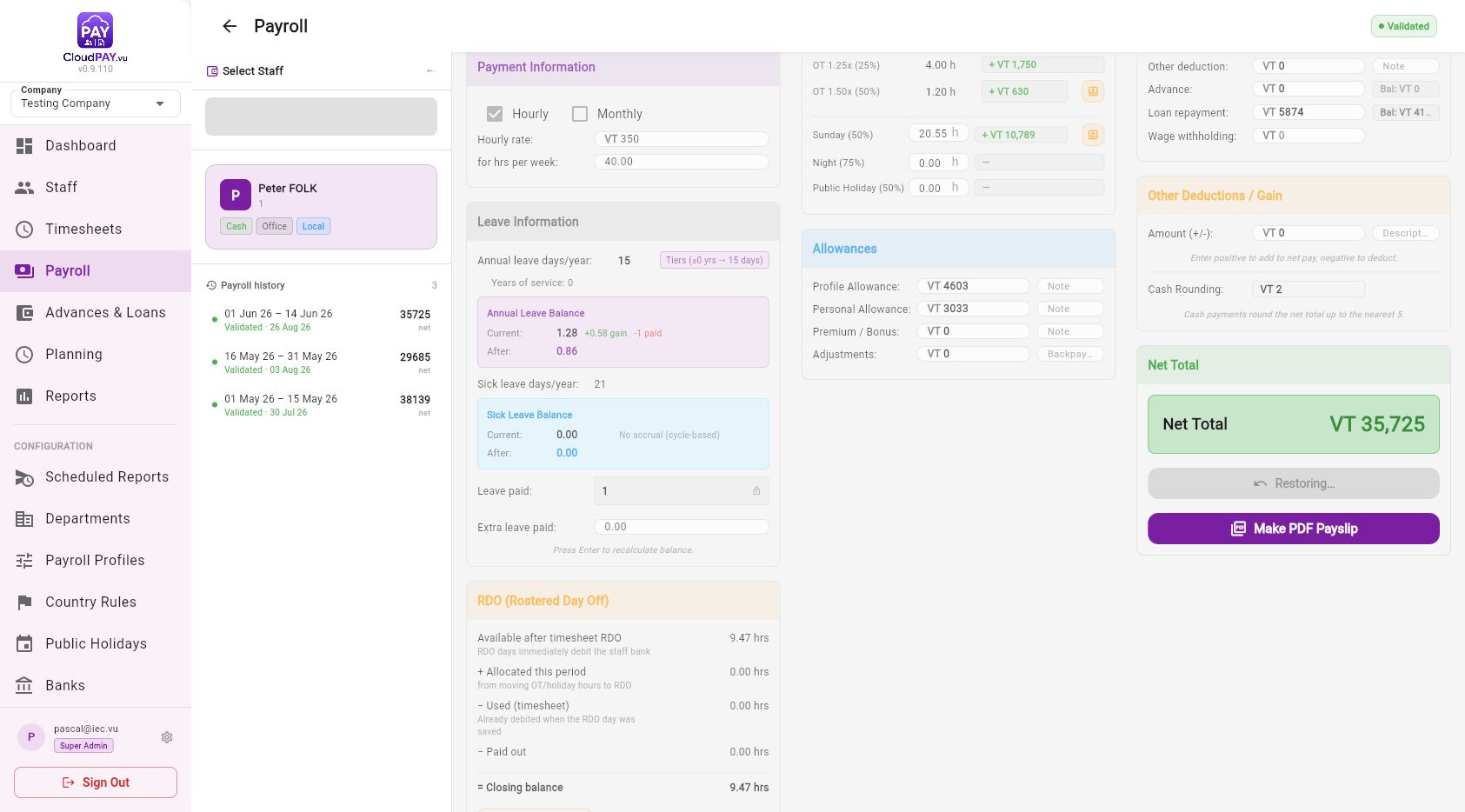
Leave values are shown in Leave Information. The balance card makes the arithmetic visible: current balance plus this period’s gain, less the leave consumed by the payroll.
- Confirm Annual leave days/year, the leave source/tier, and Current balance.
- For an hourly employee, Leave paid is read-only and comes from the timesheet. Check the paid-leave hours in Working Hours and the Paid Leave line in the payment breakdown.
- To cash out additional entitlement, edit Extra leave paid with the number of days to pay. Press Enter to recalculate the balance.
- Do not use Extra leave paid to record ordinary leave taken. Ordinary leave belongs in the timesheet so it is paid once and remains traceable.
- Review After. If it is negative or marked Exceeded, reduce the extra payout or correct the leave entry before saving.
Sick leave is shown separately. The card displays current and after balances; paid sick hours come from the timesheet. Sick leave is not included in a final annual-leave payout.
5 · Review pay, allowances and deductions
Allowances and backpay
Enter VT amounts in Allowances. Add a short note beside any non-standard amount so another reviewer can understand it later.
| Field | Use it for | Good note |
|---|---|---|
| Profile Allowance | Allowance that belongs to the payroll profile or role. | Name the policy or role. |
| Personal Allowance | Employee-specific regular allowance. | State the entitlement or agreement. |
| Premium / Bonus | One-off bonus or premium payment. | State the reason and period. |
| Adjustments | Backpay or a correction to an earlier period. | Use the Backpay note field with the original period. |
Deductions
Review VNPF first, then enter approved deductions. Advance and loan rows show a balance when available; do not deduct more than the approved balance.
| Field | Review before saving |
|---|---|
| VNPF | Calculated contribution for this payroll. Confirm the employee is eligible and the amount looks reasonable. |
| Deduction / Other deduction | Enter the VT amount and a clear note. |
| Advance / Loan repayment | Check the displayed balance and enter only the repayment approved for this period. |
| Wage withholding | Use only for a documented withholding instruction. |
| Other Deductions / Gain · Amount (+/−) | Positive adds to net pay; negative deducts. Always fill in the Description. |
For cash payments, Cash Rounding rounds the net total up to the nearest VT 5. It is calculated by the page; do not type it as a manual deduction.
6 · Recalculate, save and validate
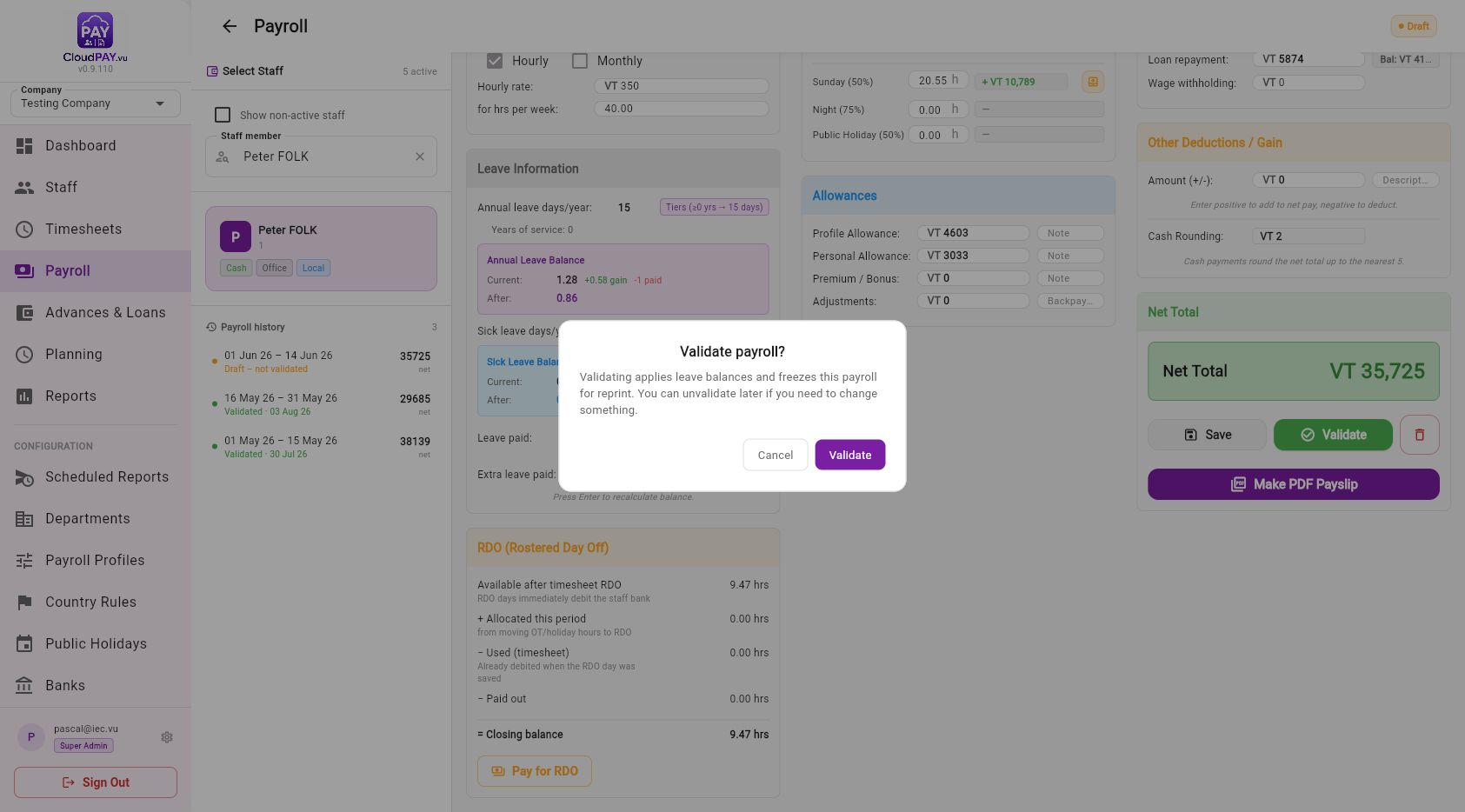
- Read the Payment Breakdown line by line: Normal Hours, premiums, overtime tiers, Paid Leave, RDO Paid Out, allowances and rounding.
- Read Deductions, then compare Net Total with your expected payment.
- If the record is new, choose Save Payroll. If it is an existing draft, choose Save.
- When the numbers are final, select Validate and confirm the prompt. Validation freezes this payroll’s values and applies the leave/RDO balance movements.
- Use Make PDF Payslip after validation when a payslip copy is required.
Quick recovery guide
| If you see… | Do this |
|---|---|
| Hours do not match the timesheet | Choose Call Timesheet again, then recheck the period and preview. |
| Leave after-balance is negative | Check Extra leave paid, leave paid from the timesheet and the employee’s current balance. |
| RDO closing balance is negative | Reduce Paid out, or correct hours moved/used, until the closing balance is zero or positive. |
| Net total changed unexpectedly | Read the breakdown from top to bottom; the changed field is usually a premium, leave, allowance, deduction or cash rounding value. |
| The fields are locked | The payroll may already be validated. Review the frozen record and use the allowed unvalidation path only if a correction is authorised. |