Let the schedule clean up routine clockings.
Automatic Rules can amend eligible clockings against a staff member’s fixed work schedule after the day closes. The original machine clockings remain available, while the amended result is clearly marked as auto-verified.
The essential rule
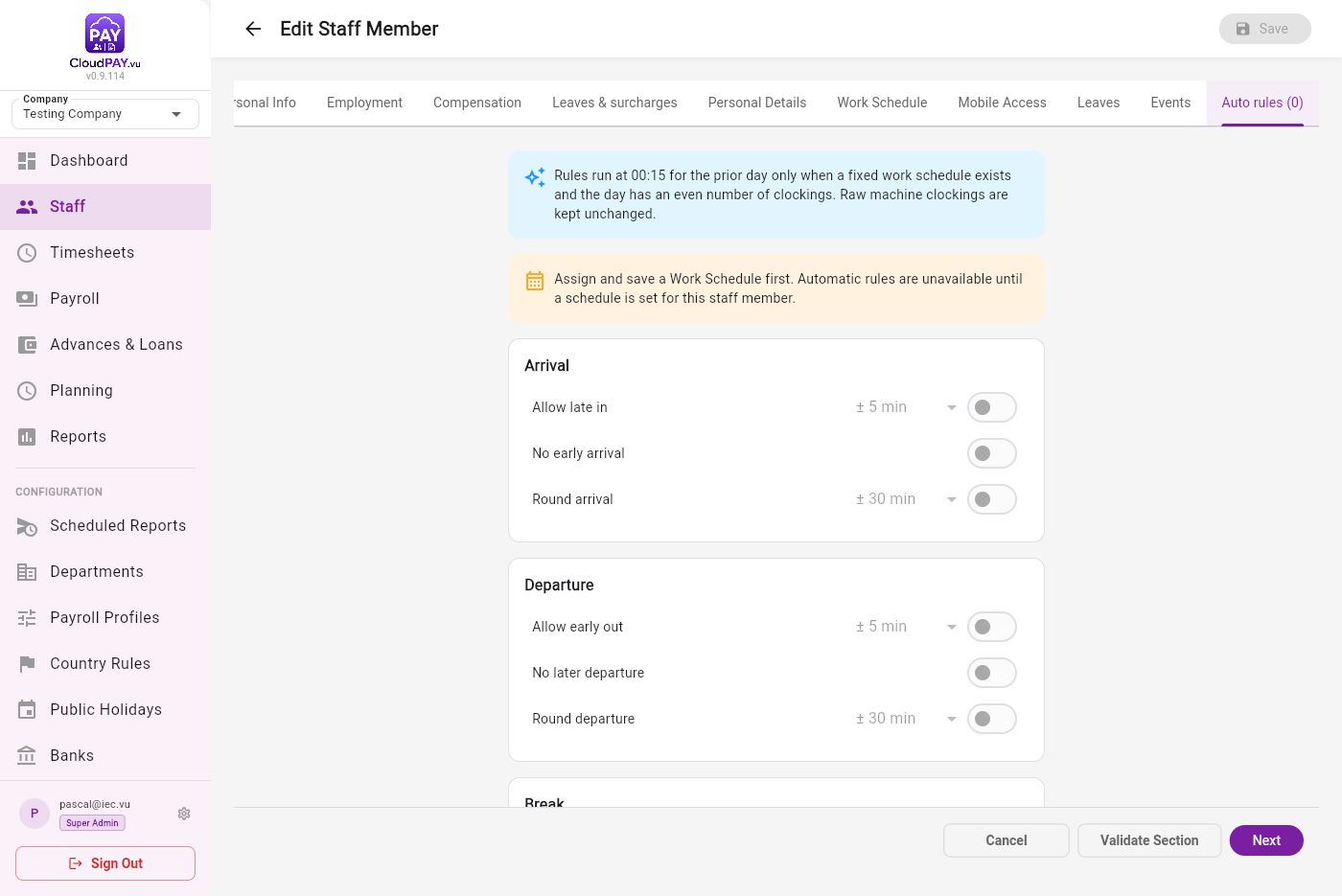
A Work Schedule must be assigned and saved first. Without a schedule, CloudPay cannot know the planned arrival or departure times, so Auto Rules remain disabled. This requirement is enforced in the screen and in the database.
What you get
1 · Set up the staff member first
- Open Staff and edit the staff member.
- Open Work Schedule, select the weekly planning that describes the employee’s normal week, and save the staff record.
- Re-open the staff member if needed, then open Auto rules. The controls are enabled only when a saved Work Schedule exists.
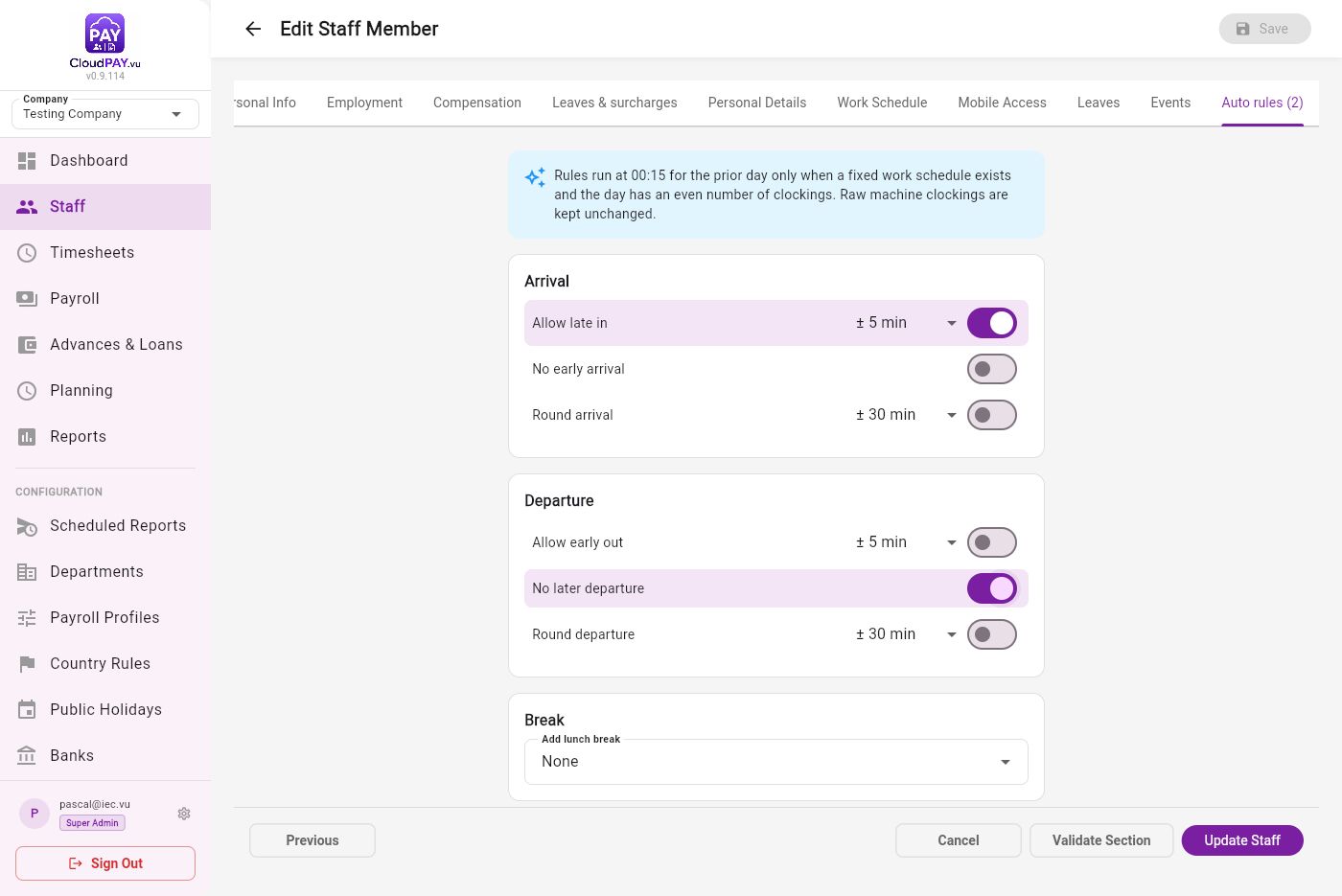
- Choose one or more rules, then select Update Staff or Save automatic rules. The tab shows the number of active rules.
2 · Choose the rules to apply
None of the rules are enabled by default. Enable only the adjustments that match your company’s attendance policy.
| Group | Rule | Default / meaning |
|---|---|---|
| Arrival | Allow late in | ± 5 minutes by default; brings a small late arrival back to the planned time. |
| Arrival | No early arrival | Moves an early arrival forward to the planned time. |
| Arrival | Round arrival | Rounding is configurable; the screen defaults to ± 30 minutes. |
| Departure | Allow early out | ± 5 minutes by default; brings a small early departure back to the planned time. |
| Departure | No later departure | Prevents a departure later than the planned time. |
| Departure | Round departure | Rounding is configurable; the screen defaults to ± 30 minutes. |
| Break | Add lunch break | None by default; choose 0h30, 1h00, 1h30 or 2h00. |
3 · Understand the nightly run
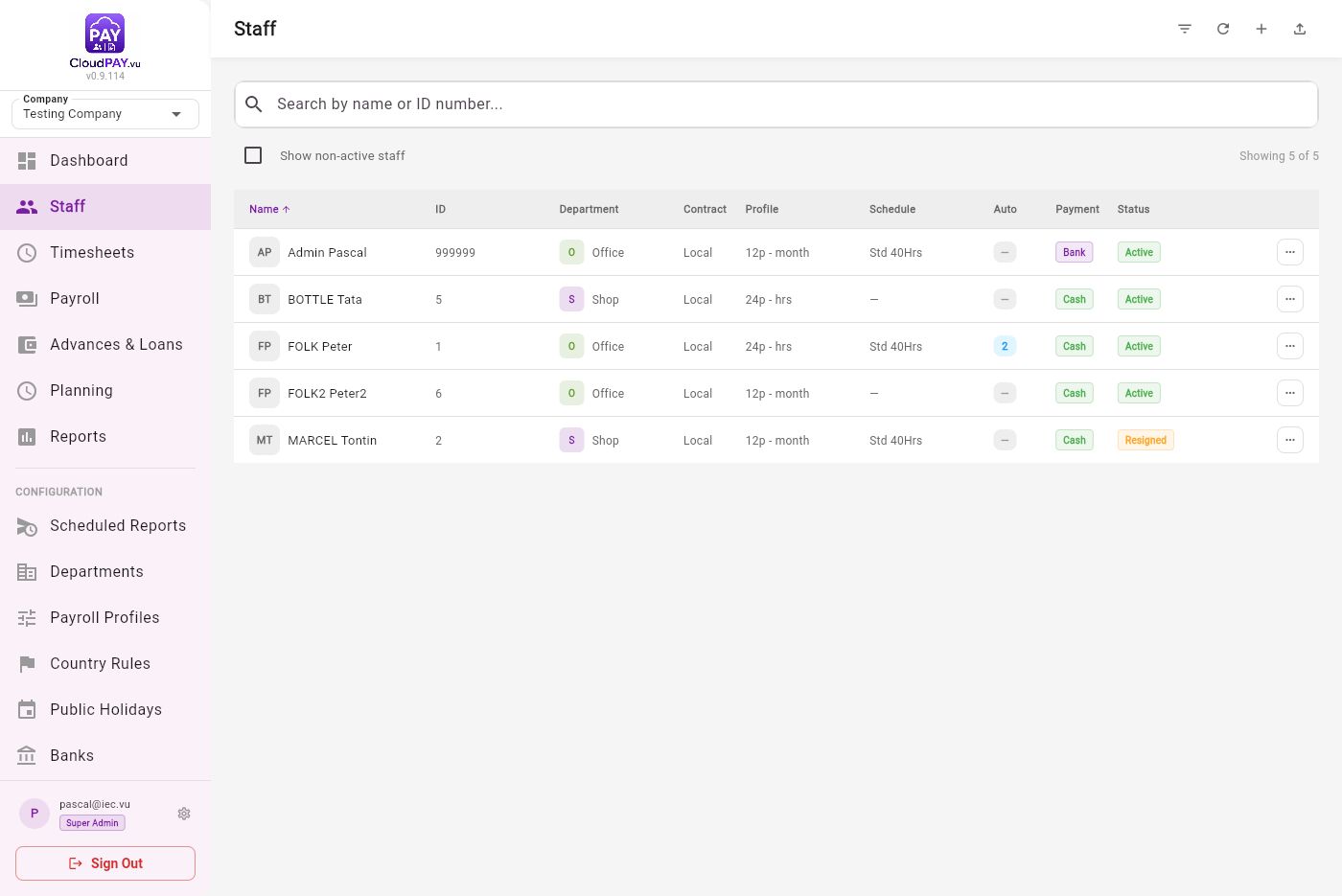
The NC2 scheduled job runs at approximately 00:15 Pacific/Efate and processes the prior calendar day. It does not continuously change the current day.
4 · Read the status colours
| Status | Colour | Meaning | What to do |
|---|---|---|---|
| Verified / Reviewed | Green | A manager has checked the day. | No automatic processing is applied afterward. |
| Auto verified | Blue | The nightly job applied the configured rules and marked the day checked. | Review the amended values if needed; use Show Raw to compare the originals. |
| Incomplete | Orange | The day has an odd or missing clocking pair. | Resolve the clocking manually before relying on the day for payroll. |
5 · Worked example: staff ID 1
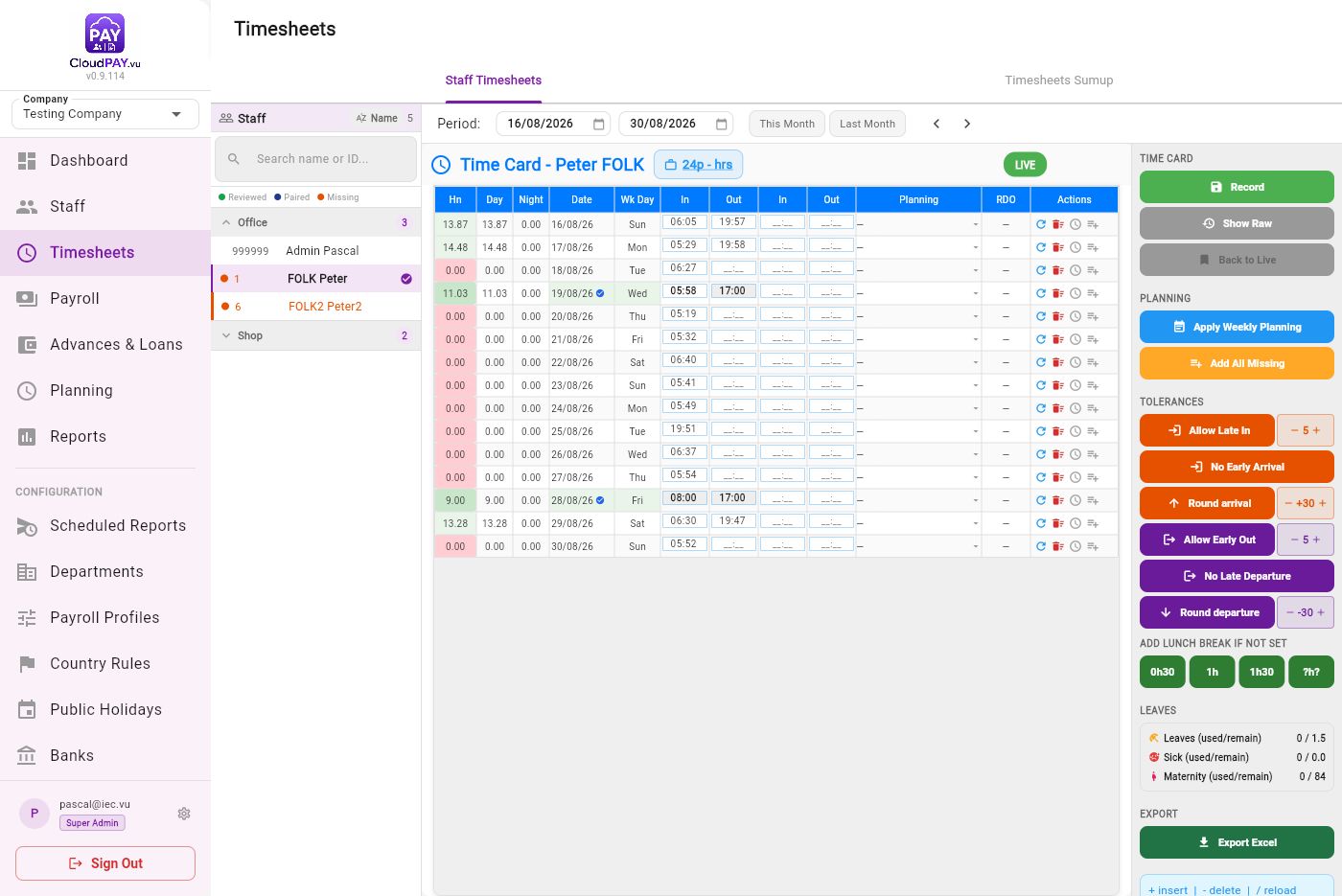
- Staff ID 1 has the Std 40Hrs weekly schedule: 08:00–12:00 and 13:00–17:00 on working weekdays.
- Two raw clockings were recorded on 19 August: 05:58 in and 19:45 out.
- The active rules were Allow late in ± 5 and No late departure.
- At 00:15, the job kept the raw values and produced an amended pair: 05:58 in and 17:00 out. The row became Auto verified.
6 · Staff app and mobile view
The staff application receives the same stored result. When a saved day is auto-verified, the date/card uses the blue auto-verification colour and the label Auto verified. This distinguishes it from a manager-reviewed green day.
What staff can compare
The amended clockings are used for the saved timesheet view, while the original machine clockings remain the audit reference. If a manager verifies the day before the nightly run, the manager’s result remains authoritative and no Auto Rule is applied.